Python Receiver Installation 🐍
RadSmart Receiver Installation and Configuration Guide 🛠️
Installation Links 🔗
- 64 Bit Version: Download Here 📥
- 32 Bit Version: Download Here 📥
Instructional Recordings 🎥
- Installation Steps: Anydesk Recording 🎞️
- Configuration Changing Steps: Anydesk Recording 🎞️
Installation Steps 📋
-
Download and Unzip:
- Download the receiver zip to the client system. 📁
- Unzip and copy to
C:/. 🗂️
-
Initial Check:
- Inside the folder, find
radsmart_receiver.exe. 🔍 - Double-click to ensure the receiver works. A CMD window should open. 💻
- Close the CMD window. ✖️
- Inside the folder, find
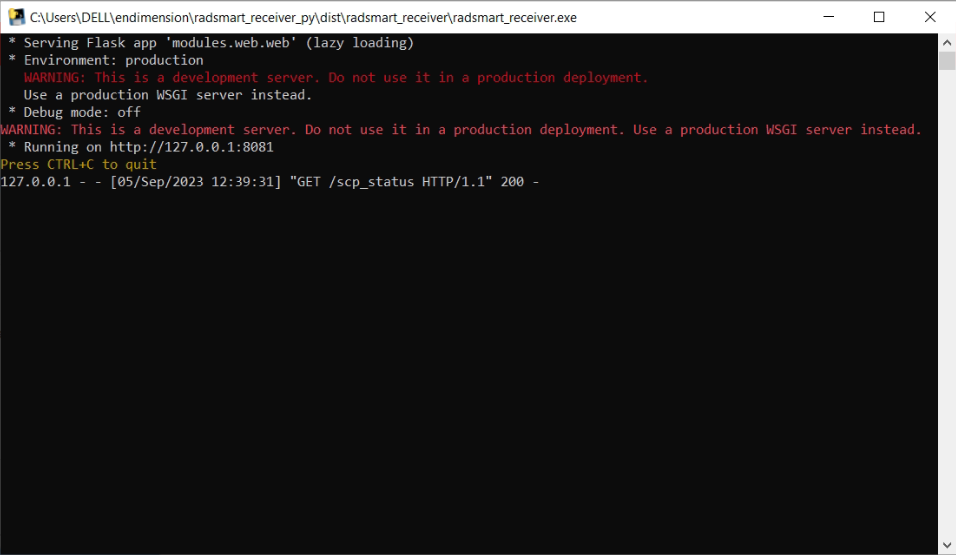
warning
If it doesn't open, contact the development team.
- Installing as a Service:
- Open Command Prompt as administrator. 🛡️
- Run the following commands:
cd C:\radsmart_receiver\bin\nssm-2.24\win64\
nssm.exe install radsmart_service
caution
Ensure there aren't any spaces in the installation path. If there are, then replace those spaces with "_"
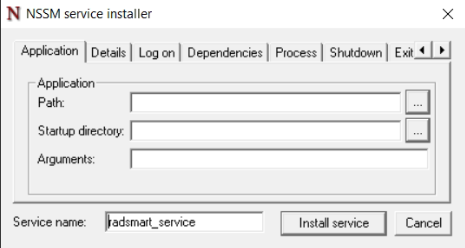
caution
Ensure the Service name here is unique and isn't used by any other service in the system.
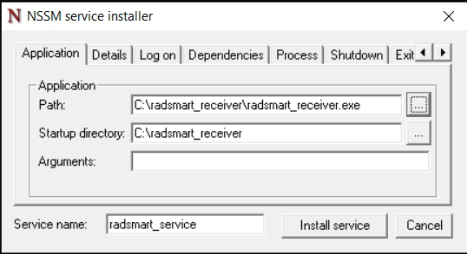
- In the popup window, select the application path to
radsmart_receiver.exe. 🖱️
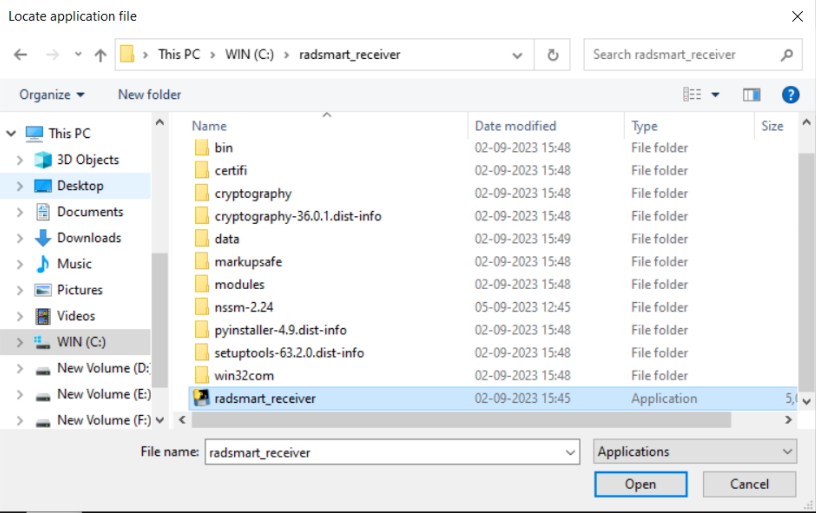
- Click on "Install Service" button. ✔️
- Open the Services window to see the
radsmart_service. 👀
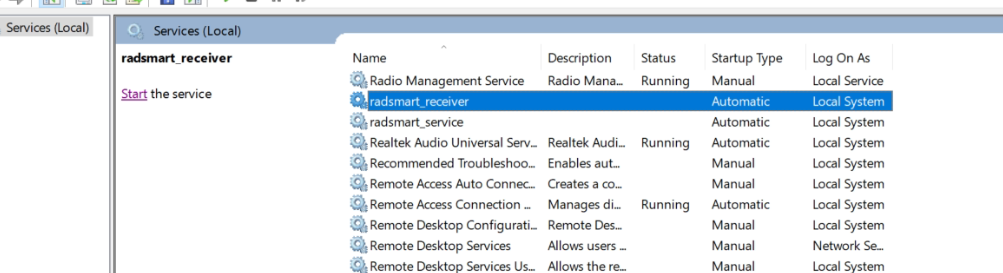
-
Starting the Service:
- Click on
start_service. 🟢 - Service is now installed. 🎉
- Click on
-
Login and Usage:
- Open Chrome and navigate to
http://localhost:8081/. 🌐 - Enter username and password and click on login. 🔑
- The Python receiver is now installed. ✅
- Open Chrome and navigate to
New Features in V4.1.4 🆕
-
Re-submit Button 🔁
- When to use:
- Client has deleted the draft.
- Client has submitted the draft and deleted the main study.
- Function: Makes the draft re-appear on the interface for the above cases.
- When to use:
-
Delete Button 🗑️
- Purpose: To delete the study from the local receiver database.
-
Check Logs in Browser 📊
- Access: Go to
http://localhost:8081/logsto check logs.
- Access: Go to
-
Check SCP Logs in Browser 📈
- Access: Go to
http://localhost:8081/scp_logsto check SCP processor logs.
- Access: Go to
-
Check Environment Parameters in Browser 🛠️
- Access: Go to
http://localhost:8081/envto check the environment parameters.
- Access: Go to
-
Upload Speed Test ⏩
-
Usage:
- Click on the "Start Upload Speed Test" button.
- Click on "Stop Upload Speed Test" before logging out of Anydesk.
noteWait for 2 minutes before checking upload speeds.
-
-
Logout 🔚
-
Function: Deletes user credentials and logs out the client.
cautionEnsure no studies are being processed before logging out.
noteRestarts all processes (takes 7-8 seconds).
-