Login Issues in Receiver 🔒
Issue: Invalid Username or Password Error Message 🚫
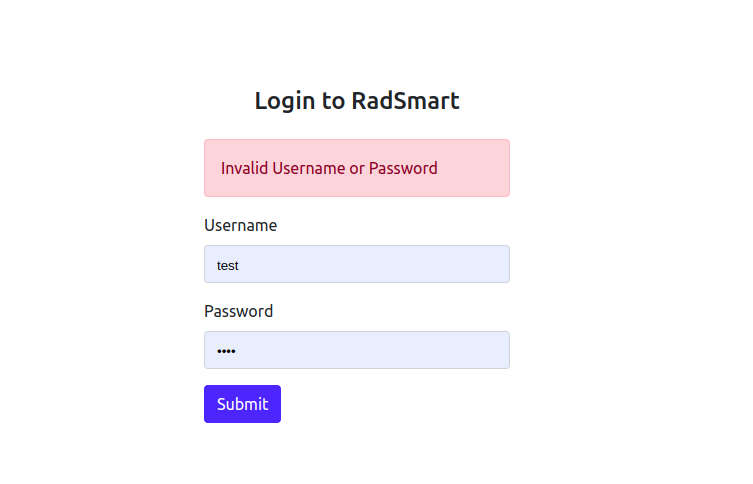
This issue can happen due to the following reasons -
1. Issue: Incorrect Username or Password 🔐
Ensure the username and password are correct. Contact the CSR team if you are uncertain about the credentials.
2. Older SSL/TLS Protocol Support 🌐
Older versions of Windows might not support newer SSL/TLS protocols required for secure HTTPS connections.
Solution:
- Change the
server_addressinconfig.jsontohttp://live.radsmart.in:8000
3. Windows Firewall Blocking 🧱
The Windows Firewall might be blocking the public access of the application.
Solution:
- Check the firewall settings to ensure the application is allowed internet access.
- Allow public access to the
radsmart_receiver.exeapplication.
Follow the steps in this collapsible to allow the application through the firewall
For Windows 10/11 💻
-
Search for Firewall:
- Press Windows Key and type “Firewall”.
- Select Windows Defender Firewall from the search results.
-
Allow an App through Firewall:
- In the left pane, click on Allow an app or feature through Windows Defender Firewall.
-
Change Settings:
- Click the Change settings button. ⚠️ You might need administrator privileges for this step.
-
Find or Add the Application:
- Look for the application in the list. If it's not there, click Allow another app… to browse and add the application to the list.
-
Allow Public Access:
- Once the application is listed, check the boxes under both Private and Public columns to allow it to communicate through the firewall in all network types.
-
Confirm and Apply:
- Click OK to apply the changes.
For Windows 7/8 💻
-
Open Windows Firewall:
- Go to Control Panel > System and Security > Windows Firewall.
-
Allow a Program through Firewall:
- Click on Allow a program or feature through Windows Firewall.
-
Change Settings:
- Select Change settings. ⚠️ Administrative privileges might be required.
-
Add the Application:
- Find the application in the list, or click on Allow another program… to add it.
-
Set Network Permissions:
- Check the boxes for Home/Work (Private) and Public to set the desired network types where the application should be allowed.
-
Save the Settings:
- Click OK to save your settings.
You might need administrator rights to change firewall settings.
After changing the firewall settings, restart the application to ensure the changes take effect.
⚠️ If you're not comfortable making these changes, or if these steps do not resolve your issue, you may want to consult with the developer team.
Remember that changing firewall settings can have implications for your system's security, so proceed with caution.
4. Specific URL Issues 🔗
It has been observed that in some systems the issue exists for the URL https://live.radsmart.in.
As of now, it’s unclear why the issue comes for this URL.
Temporary Solutions:
- Change
server_addresstohttps://app.telefi.aiOR - Change
server_addresstohttp://app.telefi.ai:8000