SCP Processor Issues 🖥️
Issue: SCP Processor is Shown as Inactive 🔴
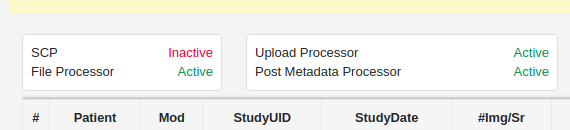
This issue can happen due to the following reasons -
1. SCP Port Occupied by Another Process 🚦
It is possible that there is already some other application in the client system that is using the receiver’s default port (11112).
Solution:
- Check if the SCP port is occupied by other applications.
Follow the steps in this collapsible to check if the SCP port is occupied
Check through Resource Monitor 💻
-
Open Resource Monitor:
- Press
Ctrl+Shift+Escto open the Task Manager. - Go to the "Performance" tab.
- Click on "Open Resource Monitor" at the bottom.
- Press
-
Navigate to the Network Tab:
- In the Resource Monitor, switch to the "Network" tab.
-
Check Listening Ports:
- Find the "Listening Ports" section which lists all ports currently in use and their associated processes.
-
Search for Your Specific Port:
- Look through the list or use the search feature to find your specific port.
-
Identify the Process Using the Port:
- The "Process" column will show you the name of the process using the port.
Check through Command Prompt ⌨️
-
Open Command Prompt:
- Search for "cmd" in the Windows search bar and open Command Prompt.
-
Use the
netstatCommand:- Type
netstat -aon | findstr :<port_number>and press Enter. - Replace
<port_number>with the actual port number you're checking.
- Type
-
Interpret the Output:
- The output shows the protocol, local address, foreign address, state, and the PID of the process using the port.
- No output means the port is not in use.
-
Find the Process Using the PID:
- Use the Task Manager's "Details" tab to match the PID to a process.
Check through PowerShell 🧰
- Using PowerShell:
- Type
Get-Process -Id (Get-NetTCPConnection -LocalPort <port_number>).OwningProcessin PowerShell. - Replace
<port_number>with the port you're checking.
- Type
- If SCP port is occupied, then change the
scp_portinconfig.jsonto11113or any other available port.
2. Spaces in the Installation Folder 🛠️
The receiver internally invokes some executables to run the processors based on the paths provided. However, if there is a space in the installation path, invoking the executables fails.
Cause:
- In Windows command-line interfaces, spaces are used as delimiters to separate different arguments or parameters. Spaces in the executable path may cause the shell to interpret each part of the path as a separate argument.
Temporary Solution:
- Ensure that there are no spaces in the installation path of the receiver.
Permanent Fix:
- This issue will be resolved in the next release of the software.